Mengatasi My Documents Yang Otomatis Terbuka Ketika Windows Start Up


Mengatasi My Documents Yang Otomatis Terbuka Ketika Windows Start Up yang disebabkan oleh virus - virus nakal.

Caranya :


  1. Klik Start >> Run >> ketik Regedit..
  2. Masuk ke HKEY_LOCAL_MACHINE >> SOFTWARE >> Microsoft >> Windows NT >> CurrentVersion >> Winlogon
  3. Liat bagian bawah pada panel sebelah kanan, cari nilai Userinit yang benar adalah C:WINDOWSsystem32userinit.exe, (termasuk tanda koma juga ada di sana)
  4. Jika nilai/value ga sama dengan nilai yang di atas, klik kanan pada userinit kemudian klik modify, ganti value data dengan :
    C:\WINDOWS\system32\userinit.exe
  5.  Klik OK. Keluar the Registry. Kemudian restart komputer.
Jika dirasa ada yang kurang yakin, lakukan backup registry sebelum mengubah registry tersebut, sehingga jika anda bisa me-restore nya kembali.


Fix sayy ... Semoga Bermanfaat

Pawai Budaya HUT RI ke-69


Cara Mengetahui Type Motherboard tanpa Membuka CPU


Cara Mengetahui Type Motherboard tanpa Membuka CPU

  1. Untuk Windows :
    buka command promt, klick Start – Run – cmd . 
  2. Kemudian ketik perintah wmic
    Maka akan muncul tulisan seperti ini :
    wmic:root\cli>
  3. Lanjutkan ketik :  baseboard
    Enter dan akan muncul informasi mengenai Motherboard CPU anda seperti manufacturer, model, serial number, dll.


Mbok Rah


Mbok Rah adalah pemilik pekarangan dari salah satu repeater, walaupun si Mbok ini agak - agak aneh tapi sebenarnya si Mbok ini baik hati, ketika kami mengecek peralatan si Mbok malu - malu keluar dari rumahnya dan membawakan kami buah - buahan, yang dia miliki. Dan si Mbok akan selalu menanyakan kami ini siapa setiap kami datang hehehe...

Kembang Trembelek (dengan anaknya belalang yang masih imut)

Hadiah Ultahnya Mbok Rah


 Nii cara mbok Rah kasih maem ayamnya (prasmanan yaa ayamnya)


Ulatnya pake selimut daun-daun kering

Spider 

Kelincinya Mbok Rah

**** iseng-iseng menunggu team teknisi datang


Menunggu Waktu Berbuka


Crew BM
Menunggu waktu berbuka puasa .........

https://blogger.googleusercontent.com/img/b/R29vZ2xl/AVvXsEgnxFzJoX0J47fTeOthNAGja80J8ttqV21MAPR0TxUjIkkujWjTG2w9KWryB2PrUbjpgEMizRsgp3G8aGCnomGeAjpeCu_bo7TWFdOsPK6RD0Hkd0LEIK9bXsW3MYcC2IO50l4ZjZCGPgrK/s1600/20140704_164255.jpg


Mengatasi Baut Lumpur


Pernah ga ketemu sama baut yang uda modelnya kayak beginian ?
https://blogger.googleusercontent.com/img/b/R29vZ2xl/AVvXsEgvhyphenhyphenozTxsLA0spsGTTwgfbStjixhvXUFC8LJ3coCDXZqYSUewLaT31ZvfhJOs1jHEadM9Bc5Sx60uVkDXzF4pquA4YoNoLkdaCkjyIvVtLbwxTXj_UqXPUxmBXXZffJWxVJgZiEGO46Gwf/s1600/20140615_155613%252B.jpg

Engga bisa dibuka, muterrrr terus, 
segala alat berat uda dikeluarin, dari wd cutter tang potong sampek soder 
tapi malah bikin tangan sakit, tetep "mbegegeg" ga mau geser setengah milipun.

Pake ini ni biar kerenn, ambil obeng yang sesuai sama bautnya kasih lem bakar ujungnya,
tunggu kering jangan digerakkan dulu, trus di puter, selesai dahh akhirnya..


***** Baut uda kebuka, segera meluncur ambil paketan, siap ditunggu calon pembeli, BM

Axioo Imut


Hmm bukannya pada pulang malah ...


Apa gara - gara ini nii yaa ..


Tetap sumangut :)


Straxx Excel Password Remover


Instructions

This program works on the active workbook in Excel.
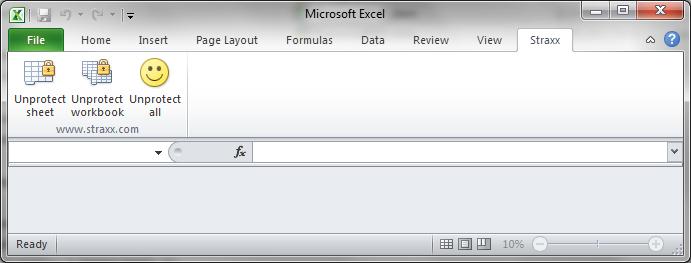
This program gives you 2 or 3 new menu items in Excel:
1) Unprotect sheet
2) Unprotect workbook
3) Unprotect all (PRO version only)
The first two removes protection from active sheet/workbook, and the PRO version displays a password that works (most probably not the same as the original).
“Unprotect all” removes workbook protection (applied with “Tools”-”Protection”-”Protect workbook”) and all worksheet passwords in the active workbook. It displays no message at the end, it just stops running.
When the program is running, look to the Excel status bar (on the lower left) which will display the running time.
If Excel appears to freeze, just let the macro do its work. It may take up to a few minutes in Excel 2007, in Excel 2010 it is very fast (usually within a second).

Instructions for pre 2007 versions of Excel
Loading this add-in in Excel gives you the extra menu-items on the bottom of the “Tools”-menu (or equivalent in non-English versions of Excel).
To load this add-in in Excel: Open it the same way you do with Excel workbooks. Installing the add-in does not work for all users.

Instructions for 2007 and 2010 versions of Excel
You must enable macros when you open the workbook if asked.
If your settings allows macros to run you will find the new menus under “Straxx” (to the right on the menu bar), and you are ready to go.
If not there are two alternatives:
1. Add the location of password*.xlam to the trusted locations.
Under “Excel options”-”Trust center”-”Trust center settings…”-”Trusted Locations”-”Add new location”, add the path to where password*.xlam is stored
2. Set your macro security level one step down.
Under “Excel options”-”Trust center”-”Trust center settings…”-”Macro settings”, set the level down to “Disable all macros with notification”
Close Excel, start Excel and open password*.xlam
The image below shows the new menu items:

http://www.straxx.com/store/wp-content/uploads/2012/05/excel_demo.jpg

Instructions for Excel 2011

Loading this add-in (and accepting macros to run) in Excel gives you the new menu items on the new “Straxx”-menu (just left of the Help-menu).
To load this add-in in Excel: Open it the same way you do with Excel workbooks. Allow macros to run.

DOWNLOAD

http://www.straxx.com/


Sinau Bebarengan